ShadowMap supports a secure, read-only integration with Microsoft Azure to automatically discover and continuously track your cloud-based internet-exposed assets. This integration enables ShadowMap to ingest authoritative asset inventory from Azure, ensuring complete coverage of your external attack surface.
This guide walks you through creating a Service Principal (App Registration) with least-privileged permissions and configuring ShadowMap to use these credentials.
To integrate Azure with ShadowMap, you will provide:
Client ID (Application ID)
Client Secret (or certificate, if you support that later)
Step 1: Create an Azure App Registration (Service Principal)
Sign in to the Azure Portal.
Go to Microsoft Entra ID (formerly Azure Active Directory).
Navigate to App registrations → New registration.
Provide:
Name:
ShadowMap-Integration(example)Supported account types: Single tenant (recommended)
Redirect URI: Not required for this use-case
Click Register.
After creation, note:
Application (client) ID
Directory (tenant) ID
Step 2: Create a Client Secret
In the same App Registration, go to Certificates & secrets.
Under Client secrets, click New client secret.
Add a description (e.g.,
ShadowMap Secret) and select an expiry period aligned to your policy.Click Add.
Copy the secret value immediately (it will not be shown again).
You now have:
Tenant ID
Client ID
Client Secret
Step 3: Grant Read-Only Access via Azure RBAC
ShadowMap needs read-only access to enumerate resources and extract relevant internet-exposed assets. This is granted via Azure RBAC at the appropriate scope.
Go to Subscriptions → select the target subscription.
Open Access control (IAM).
Click Add → Add role assignment.
Choose role: Reader
Assign access to: User, group, or service principal
Select your app:
ShadowMap-IntegrationClick Review + assign
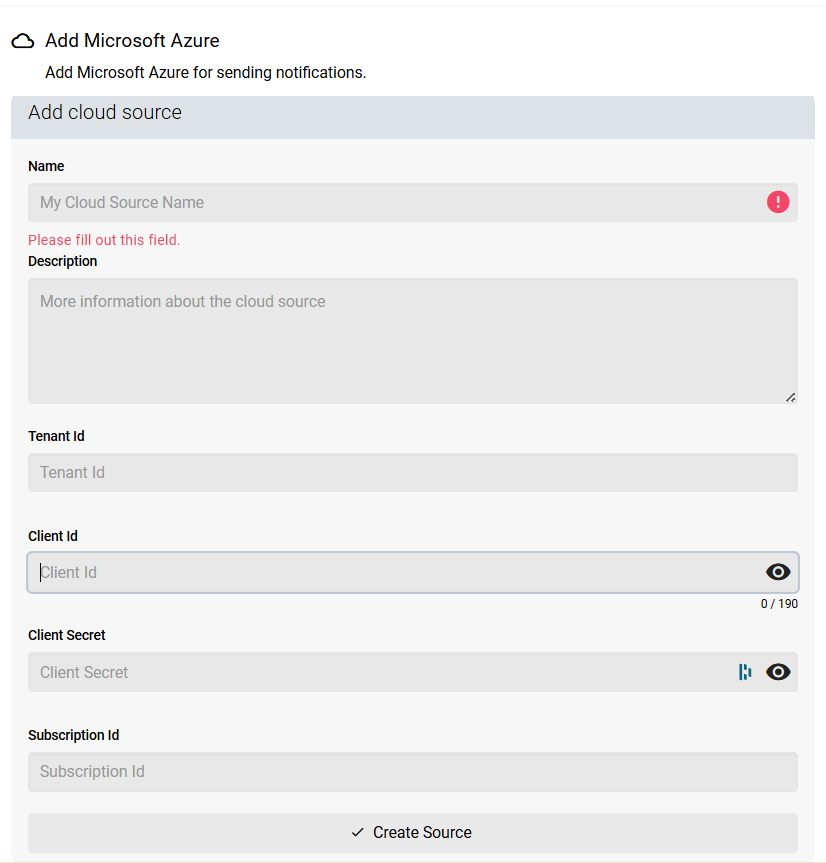
Step 4: Configure Azure in ShadowMap
Log in to your ShadowMap account.
Navigate to Settings → Cloud Sources.
Select Microsoft Azure Integration.
Click Create New Configuration.
Enter:
Configuration Name
Tenant ID
Client ID
Client Secret
Subscription ID (or select/add subscriptions, if your UI supports multiple)
Click Create Source to save and enable the integration.
How Azure Data is Used in ShadowMap
Once the Azure integration is enabled, ShadowMap begins enumerating Azure resources and extracting data used to build and maintain an accurate external attack surface inventory.
Typical data ShadowMap can ingest and correlate includes:
Compute & Public Endpoints
Virtual Machines (VMs) and associated network interfaces
Public IP addresses linked to workloads
App Services / Web Apps public hostnames (where applicable)
Networking & Exposure Mapping
Load Balancers (public-facing frontends)
Application Gateways (including WAF-enabled gateways)
Azure Front Door endpoints
Network Security Groups (NSGs) metadata (useful for exposure context)
DNS & Sub-domain Discovery
Azure DNS Zones and DNS record sets (sub-domains, A/AAAA/CNAME records, etc.)
Storage & Internet-Accessible Services
Storage Accounts and relevant public endpoints (e.g., blob endpoints)
Additional services that expose public endpoints depending on what is deployed
These elements are then:
Continuously monitored for changes.
Automatically included in ShadowMap's scanning engine.
Evaluated for vulnerabilities, misconfigurations, and threats.
Was this article helpful?
That’s Great!
Thank you for your feedback
Sorry! We couldn't be helpful
Thank you for your feedback
Feedback sent
We appreciate your effort and will try to fix the article