ShadowMap supports a read-only integration with AWS to automatically discover and continuously track cloud-based internet-exposed assets. This integration enables ShadowMap to ingest authoritative data directly from AWS, ensuring complete and accurate coverage of your external attack surface.
This guide walks you through creating a least-privileged AWS IAM user and configuring ShadowMap to securely access your AWS environment.
Step 1: Create an AWS IAM User
Sign in to the AWS Management Console.
Navigate to IAM (Identity & Access Management).
From the left menu, click Users, then select Add users.
Enter a user name (for example:
shadowmap-readonly).Select Access key – Programmatic access.
Click Next.
Step 2: Create and Attach a Custom Read-Only Policy
In the permissions screen, select Attach policies directly.
Click Create policy.
Switch to the JSON tab and paste the following policy:
{
  "Version": "2012-10-17",
  "Statement": [
    {
      "Effect": "Allow",
      "Action": [
        "ec2:DescribeInstances",
        "ec2:DescribeAddresses",
        "elasticloadbalancing:DescribeLoadBalancers",
        "lightsail:GetInstances",
        "s3:ListAllMyBuckets",
        "s3:GetBucketLocation",
        "route53:ListHostedZones",
        "route53:ListHostedZonesByName",
        "route53:ListResourceRecordSets",
        "route53:ListCidrBlocks",
        "sts:GetCallerIdentity"
      ],
      "Resource": "*"
    }
  ]
}
Click Next, name the policy (for example:
ShadowMap-ReadOnly-Discovery), and create it.Return to the user creation flow and attach this newly created policy.
Complete user creation and securely copy the Access Key ID and Secret Access Key.
Step 3: Configure AWS in ShadowMap
Log in to your ShadowMap account.
Navigate to Settings -> Cloud Sources
Select Amazon Web Services Integration.
Create a new Configuration
Enter the Name, Region, Access Key ID and Secret Access Key.
Click Create Source to save and enable the integration.
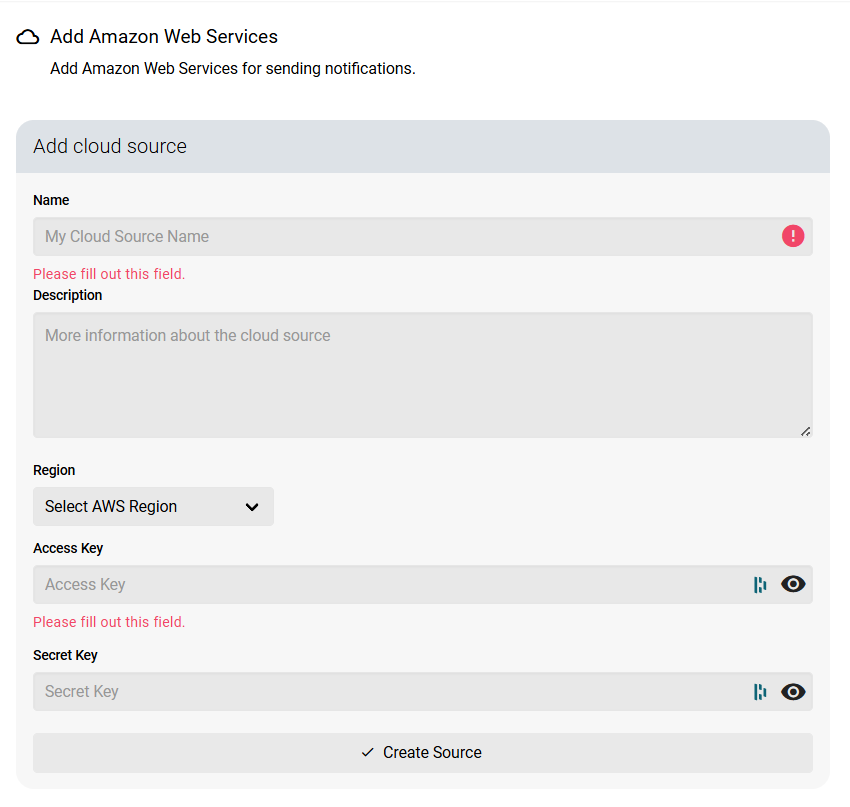
How AWS Data is Used in ShadowMap
After successful integration, ShadowMap continuously pulls and correlates AWS asset data to enrich your external attack surface inventory:
Asset Discovery
EC2 Instances
Public IP addresses, elastic IPs, and instance metadata are added to scope.Elastic Load Balancers (ELB/ALB/NLB)
Internet-facing endpoints are identified and tracked.Route 53
Hosted zones and DNS records are analyzed to discover sub-domains and mapped IPs.S3 Buckets
Bucket names, regions, and accessible endpoints are identified for exposure analysis.Lightsail Instances
Public-facing Lightsail workloads are included automatically.
These assets are:
Continuously monitored for changes and drift
Automatically included in ShadowMap’s scanning and intelligence workflows
Evaluated for vulnerabilities, misconfigurations, exposed services, and threat indicators
Key Benefits of AWS Integration
Eliminates blind spots caused by manual scope management
Ensures cloud-native assets are always in scope
Reduces dependency on static IP or domain lists
Provides authoritative source-of-truth data directly from AWS
Was this article helpful?
That’s Great!
Thank you for your feedback
Sorry! We couldn't be helpful
Thank you for your feedback
Feedback sent
We appreciate your effort and will try to fix the article
